How to Disable Google Play Protect to Install GB WhatsApp
Google Play Protect is a built-in security feature that scans apps on your device. It can block or warn against apps that are not downloaded from the Play Store. Since GB WhatsApp APK is a third-party app, Play Protect may stop its installation. In this guide, you will learn how to disable Google Play Protect in simple steps, so you can easily install GB WhatsApp.
What Is Google Play Protect
Google Play Protect is a security system by Google. It checks apps for harmful activity and keeps your device safe. It runs automatically in the background and scans apps from both the Play Store and external sources.
While it is useful for protection, it may block safe third-party apps like GB WhatsApp APK.
Why You Need to Disable Play Protect
There are a few reasons why users turn off this feature before installing GB WhatsApp.
Common Reasons
- It blocks APK file installation
- Shows warning messages
- Removes or disables the app automatically
- Prevents updates of mod apps
- Stops background access for installed APKs
Disabling it helps you install GB WhatsApp without interruption.
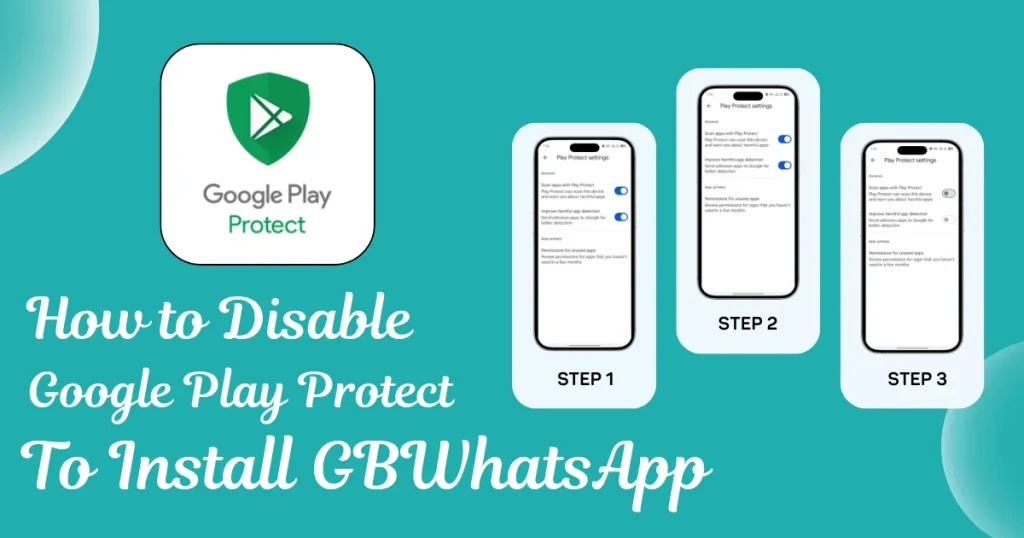
Steps to Disable Google Play Protect
Follow these simple steps to turn off Play Protect on your Android device.
- Step 1: Open Google Play Store
- Open the Play Store app on your phone
- Make sure you are connected to the internet
- Step 2: Go to Profile
- Tap on your profile icon at the top right corner
- Step 3: Open Play Protect
- Tap on Play Protect from the menu
- Step 4: Open Settings
- Tap on the settings icon at the top right
- Step 5: Turn Off Protection
- Turn off Scan apps with Play Protect
- Turn off Improve harmful app detection
- Step 6: Confirm Action
- Confirm the warning message to disable the feature
Now Google Play Protect is disabled on your device.
How to Install GB WhatsApp After Disabling
Once Play Protect is turned off, you can install the APK file easily.
Installation Steps
- Download GB WhatsApp APK from a trusted source like GBWTA.COM
- Go to phone Settings
- Open the Security or Privacy section
- Enable Unknown Sources or Install unknown apps
- Open the downloaded APK file
- Tap Install and wait for completion
- Open the app and verify your number
Important Safety Tips
Disabling Play Protect can reduce your device security. Follow these tips to stay safe.
- Download APK only from trusted websites
- Avoid unknown or suspicious files
- Keep your device updated
- Use an antivirus if needed
- Do not install unnecessary apps
Advantages of Disabling Play Protect
- Allows installation of third-party apps
- Removes unnecessary warnings
- Gives full control over APK installation
- Helps in using advanced apps like GB WhatsApp
Disadvantages of Disabling Play Protect
- Reduced device security
- Risk of harmful apps
- No automatic app scanning
- Increased chance of malware if not careful
Should You Enable It Again
Yes, it is a good idea to turn Play Protect back on after installing GB WhatsApp.
- Open Play Store
- Go to Play Protect
- Open settings
- Turn on all protection options
This will keep your device safe after installation.
Final Thoughts
Google Play Protect is useful for keeping your device secure, but it can block third-party apps like GB WhatsApp APK. By following the steps above, you can disable it and install the app without any issues.
Always stay careful when installing APK files. Use trusted sources and enable security features again after installation. This way, you can enjoy GB WhatsApp with full safety and control.