How to Fix ‘You Need the Official WhatsApp to Log In’ Error [2025]
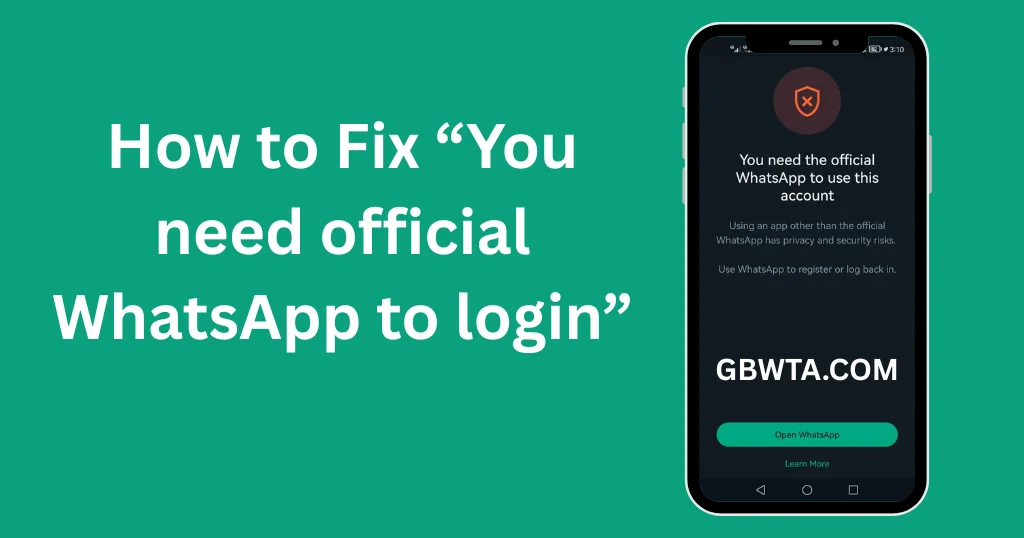
If you encounter the ‘You need the official WhatsApp to log in’ error on GB WhatsApp, you’re not alone. This issue arises because WhatsApp blocks modified apps like GB WhatsApp due to security and privacy concerns..
Login Problem Fixed
This comprehensive guide offers two effective methods to resolve the GB WhatsApp login error and restore seamless access to your account.
Why Does This Error Occur?
The ‘You need the official WhatsApp to log in’ error occurs because:
- WhatsApp identifies unofficial apps, such as GB WhatsApp, during its security checks.
- These modified apps violate WhatsApp’s strict security and compliance policies.
- Your phone number may face temporary restrictions when flagged by WhatsApp’s system.
Follow these optimized methods to bypass the GB WhatsApp login issue and regain access.
Method 1: Use Two Devices to Fix the Error
You’ll need two smartphones for this solution:
- Primary Device: Install the official WhatsApp application.
- Secondary Device: The device experiencing the GB WhatsApp error.
Step-by-Step Guide:
Install WhatsApp on the Primary Device:
- Open the Google Play Store on your primary device.
- Search for ‘WhatsApp Messenger’ and install the official app.
- Register using the same phone number linked to the error on the secondary device.
Verify and Connect:
- Complete the verification process to activate WhatsApp on the primary device successfully.
Prepare the Secondary Device:
- Uninstall GB WhatsApp from the secondary device to clear any conflicting data.
- Reinstall the latest version of GB WhatsApp from a trusted source.
Link as a Companion Device:
- Open GB WhatsApp on the secondary device.
- Tap the three dots in the top-right corner.
- Select ‘Link as Companion Device’ (or ‘Link a Device’).
- A QR code will display on the secondary device.
Scan the QR Code:
- On the primary device, navigate to Settings > Linked Devices > Link a Device.
- Use the primary device to scan the QR code displayed on the secondary device.
Complete the Setup:
- After scanning, the secondary device will log in to GB WhatsApp successfully.
- Log into the primary device every 14 days to maintain an active connection.
This method ensures a smooth resolution to the GB WhatsApp login error, allowing uninterrupted use of its features.
Method 2: Use WhatsApp Web on a Browser
If Method 1 doesn’t resolve the issue, try accessing WhatsApp Web on your secondary device for an alternative solution.
Step-by-Step Guide:
Open a Browser on the Secondary Device:
- Launch Google Chrome or another reliable browser on the secondary device.
- Search for ‘WhatsApp Web’ and click the official WhatsApp Web link (first result).
Enable Desktop Mode:
- Tap the three dots in the browser’s top-right corner.
- Select ‘Desktop Site’ to load the desktop version of WhatsApp Web.
Link via Phone Number:
- Choose the ‘Link with Phone Number’ option on WhatsApp Web.
- Enter the phone number associated with your WhatsApp account.
Generate and Enter the Code:
- A unique code will appear on the browser screen.
- On the primary device, open WhatsApp > Settings > Linked Devices > Link Device.
- Select ‘Link with Phone Number’.
- Enter the code displayed on the browser.
Access WhatsApp Web:
- Once verified, your secondary device will access WhatsApp Web, enabling you to send and receive messages seamlessly.
Key Takeaways
- Maintain an active login on the primary device to ensure a stable connection for GB WhatsApp.
- Regularly update WhatsApp and GB WhatsApp on both devices to avoid compatibility issues.
- Avoid frequent switching between official and modified apps to prevent account restrictions.
By following these User-friendly methods, you can quickly resolve the GB WhatsApp login error and enjoy its advanced features without interruptions.
If the issue persists, check for the latest GB WhatsApp update or contact their support team for further assistance.
Happy Messaging!